
Last updated: 26 November 2026
1. Purpose and scope
Many OSINT practitioners believe that images on websites will not provide any EXIF data of value. This is not always true.
Most websites are built using a Content Management System (CMS), such as WordPress or Drupal. It is important to understand how a CMS manages images, so that we can locate EXIF data in an image that on the surface is not available, but might be available on the original image still stored in the CMS.
This guide explains how a CMS handles an uploaded image. Then we use a real example on a Drupal website to locate the image with the metadata that is of value to the OSINT practitioner and how to read and record the results.
Three terms appear throughout this document. EXIF is data written mainly by the camera when the photograph is taken. The records of particular value are the camera model, the date and time, the GPS coordinates and the direction of the camera when the photo was taken. XMP is data added later, usually by editing software. Together they are known as METADATA.
In the example image selected, no people display, any EXIF data that might be related to a person has been redacted, so as to not compromise any personal data in this public document.
2. How a CMS manages images
When an image is uploaded, the CMS stores the file exactly as it was received. This is the original. The CMS then makes smaller copies of the original for display in the website. The copies might be a small thumbnail and medium and large versions, each sized for a place where the image appears in the web page. The pages of the website display these copies. A CMS does not display the original photo in the website, but it can be located with a simple technique that will be explained.
Making a copy rewrites the image. The CMS keeps the pixels needed to create the image but it excludes all of the valuable EXIF. So the image we see on the web page shows little or nothing of value to the OSINT practitioner.
If the original image had been stripped of its metadata before it was uploaded, the original will have no value for the OSINT practitioner (section 4).
3. Worked example: from a thumbnail to the camera generated EXIF
A thumbnail is a small image. Typically it might be used as a menu item to link to another page in the website. Thumbnails are easy to overlook for their EXIF value. To emphasise why a thumbnail should not be disregarded by the OSINT practitioner, the example starts with a thumbnail.
Step 1: find the image on the page
Open the chamonix.net page for mountain huts: www.chamonix.net/english/accommodation/mountain-huts. Below the introduction, the page links to three groups of huts, each with a thumbnail. The example thumbnail, bottom left, is labelled "Mont Blanc range Huts". The thumbnail displays an image of the Argentière refuge. This is the image we examine. The same thumbnail displays on three other pages in the chamonix.net website.
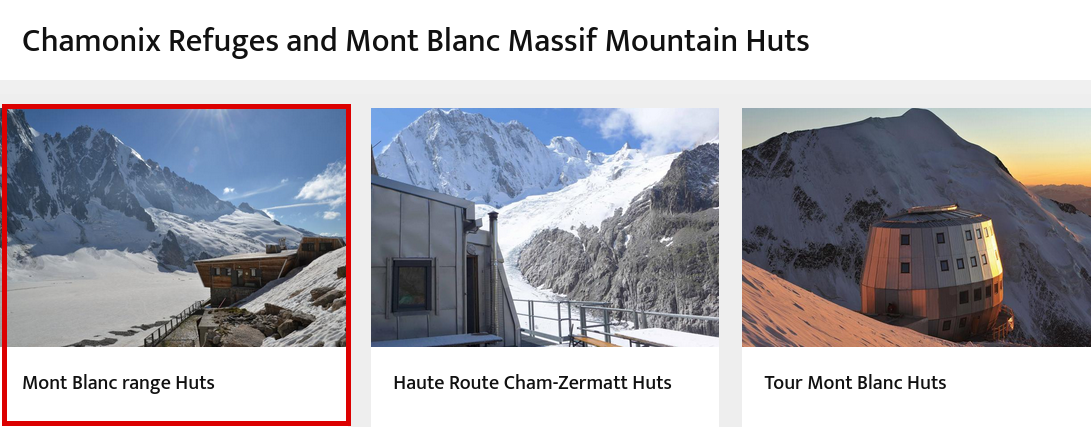
Example: the mountain huts page on chamonix.net. Only the page title and the row of thumbnails are shown here. The thumbnail we examine is outlined in red.
Step 2: open the thumbnail on its own
We need the web address (URL) of the thumbnail image itself, not the address of the page. Using a Chromium browser (we recommend the Brave browser), right-click the thumbnail and choose from the menu, "Open image in new tab". A new tab opens displaying only the image. The address bar of that tab holds the address (URL) of the image:
https://www.chamonix.net/sites/default/files/styles/medium/public/2023-0...

Copy this address.
Not every browser shows "Open image in new tab" in the right-click menu for every image. For example, the Floorp browser built on Firefox, does not have the "Open image in new tab" option in the right-click menu. Where the menu option is missing, right-click an empty part of the page, choose "View page source" and search the source for the file name, 0x-ref-argentiere-3.jpg. Copy the address that contains it. If that address starts with /sites/, add https://www.chamonix.net in front of it.
Step 3: check the thumbnail in the EXIF Info online resource
Exif Info is a free online tool that reads the metadata of an image. Open exifinfo.org, paste the address into the URL box under "Analyze a URL" and click "Inspect URL".
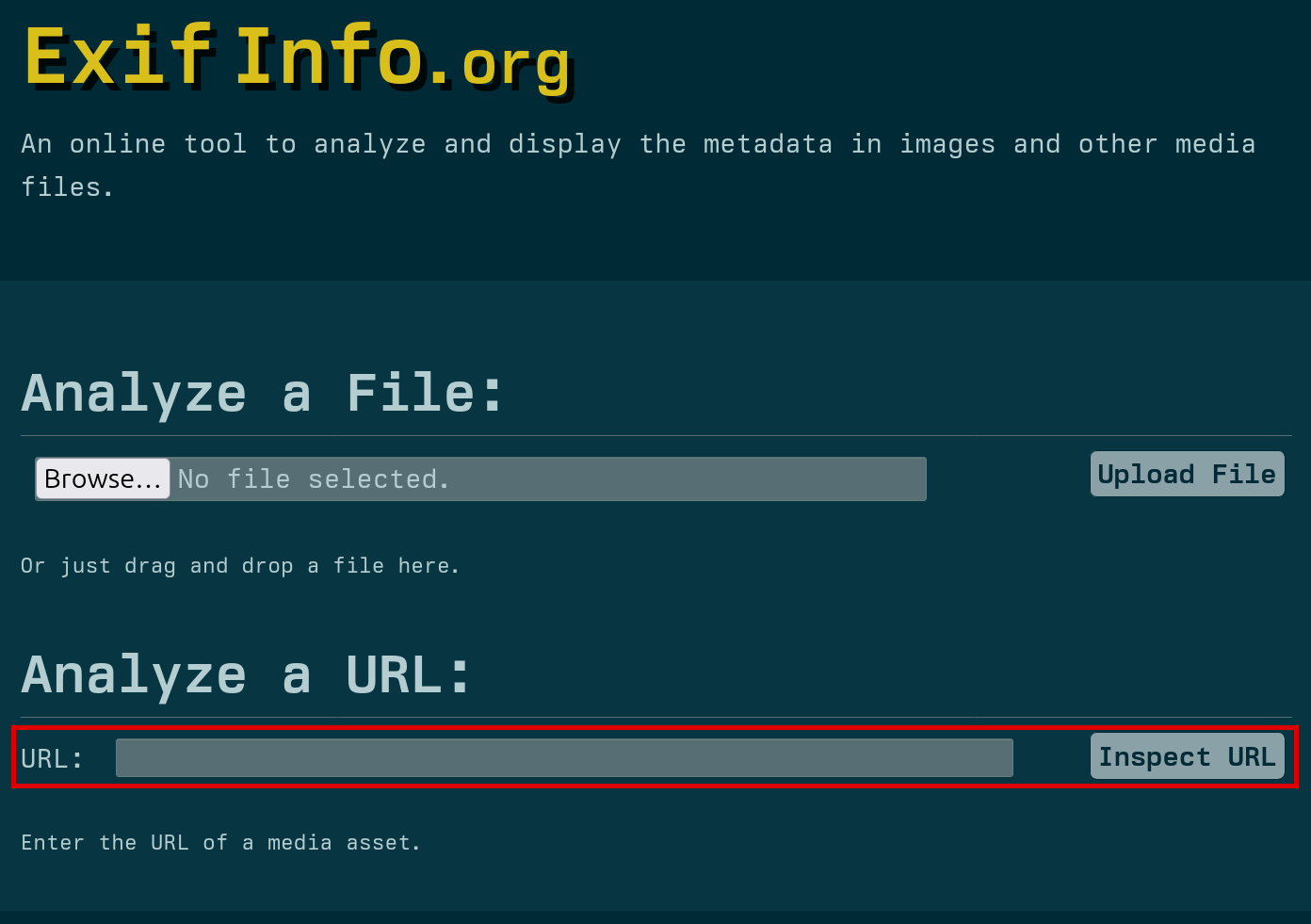
Example: the Exif Info home page. The image address goes in the URL box, outlined in red.
The Exif Info results for the thumbnail are disappointing, as expected. The image is 780 by 535 pixels and 58 kB. There is no camera, no date taken and no position. The only comment, "CREATOR: gd-jpeg v1.0 (using IJG JPEG v62), quality = 75", is written by image software on the website's server when it makes a copy. It tells us that this is the website's copy and not the original.
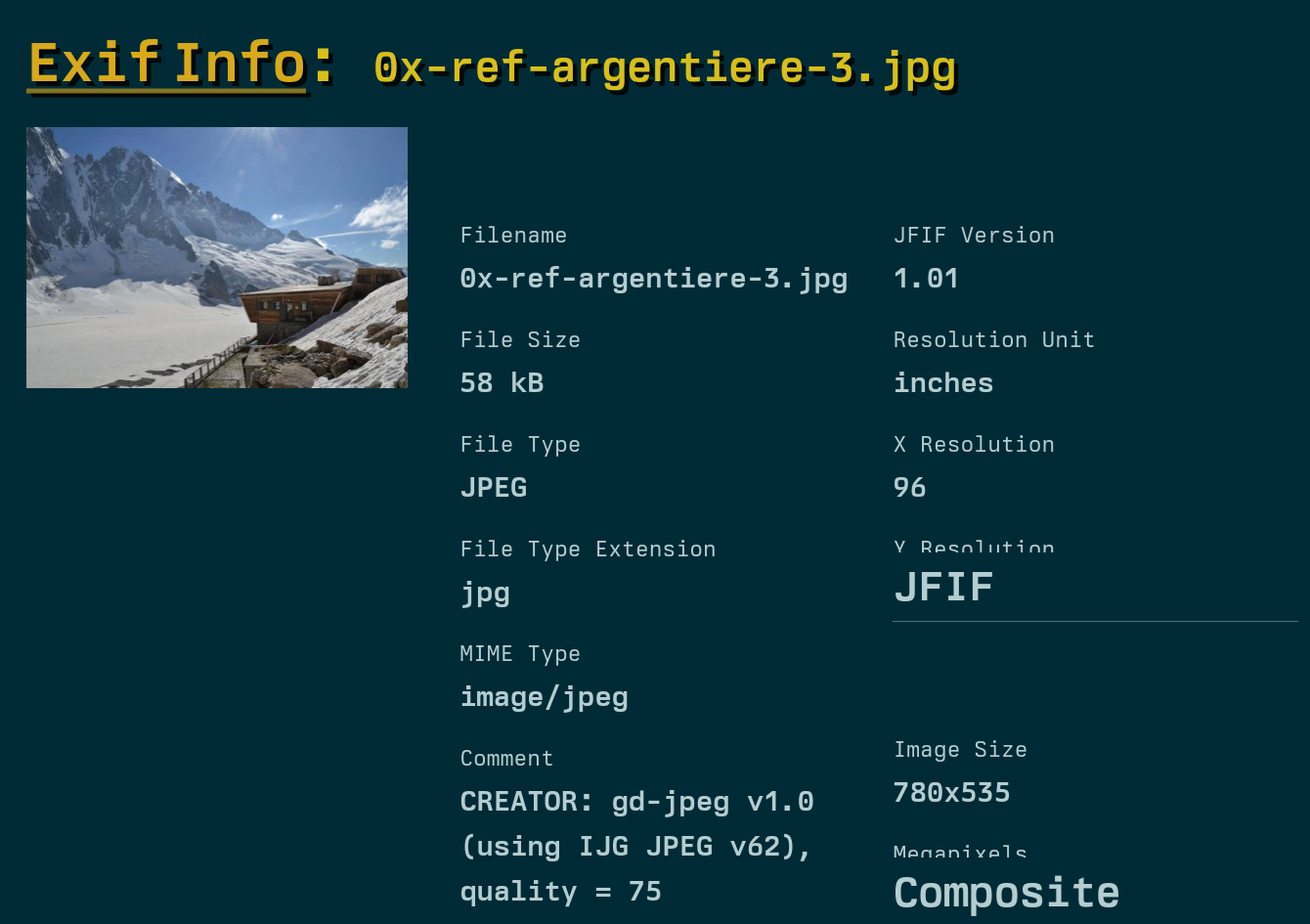
Example: the Exif Info result for the thumbnail.
An OSINT practitioner might stop at this point and record "no metadata". That record would be wrong. It describes the website's copy, not the photograph.
Step 4: change the address to reach the original
The thumbnail address contains two parts that the website adds when it makes a copy. The part "styles/medium/public/" tells the website to produce its medium-sized version. Everything from "?itok=" to the end is a code the website uses to control how copies are made. We remove both.
Before: https://www.chamonix.net/sites/default/files/styles/medium/public/2023-0...
After: https://www.chamonix.net/sites/default/files/2023-09/0x-ref-argentiere-3...
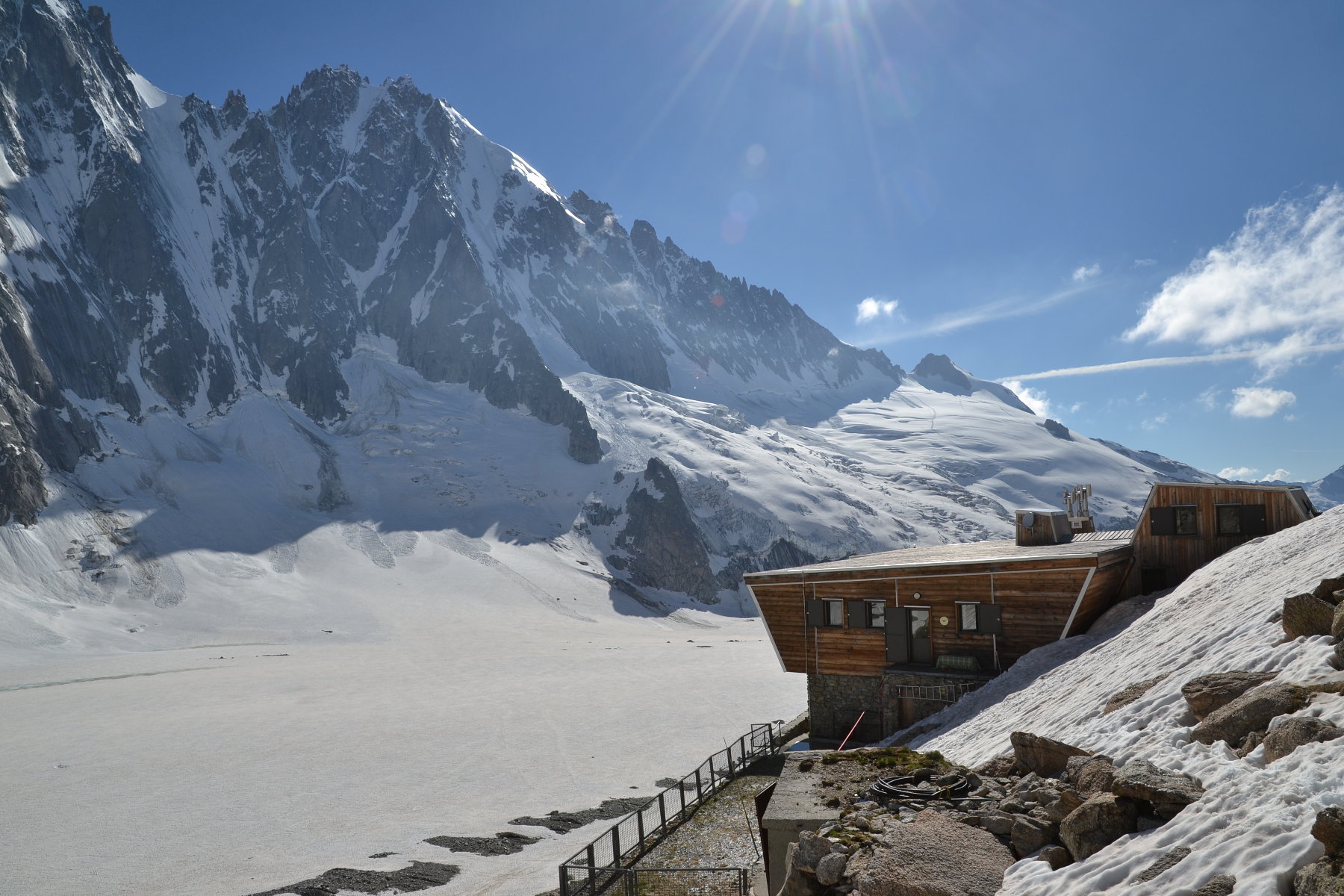
Opening the new address shows the full photograph. This is the file as it was uploaded to the website: 1800 by 1200 pixels and 404 kB, seven times the size of the thumbnail.
Step 5: check the original in the EXIF Info online resource
We paste the new address (URL) that is https://www.chamonix.net/sites/default/files/2023-09/0x-ref-argentiere-3... into Exif Info, as in step 3.
The new EXIF output displays intel of value. The full result runs to several screens. The main findings are shown in the next image. The headings EXIF and XMP are explained in section 1. MakerNotes are details the camera manufacturer records in its own format. The camera serial number and the GPS coordinates have been blacked out in this guide.
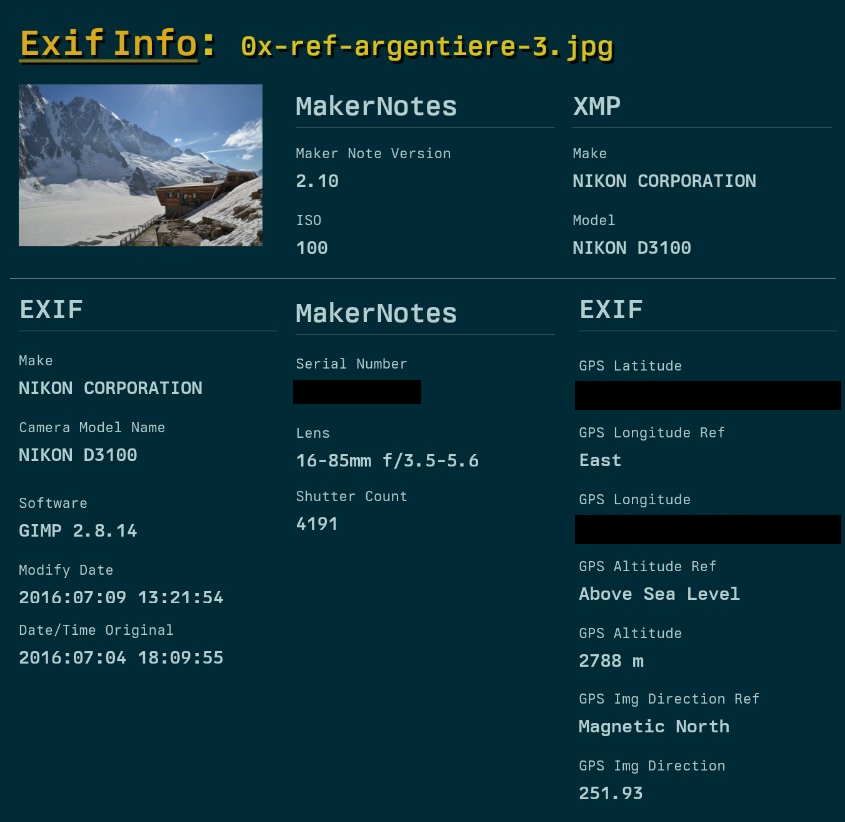
Example: part of the Exif Info result for the original.
What the original image provides
- The camera: a Nikon D3100 and its serial number. A serial number identifies one individual camera. Any other photograph published anywhere that still carries this serial number was taken with the same camera.
- The shutter count: 4,191. The camera had taken 4,191 photographs when it took this one. Photographs from the same camera can be put in order by their shutter counts.
- The lens: a 16-85 mm zoom. The camera and lens together describe the photographer's equipment.
- The place: GPS coordinates with an altitude of 2,788 metres. On a map, the position is close to the Argentière refuge shown in the photograph. We know where the photographer stood.
- The direction: 252 degrees from magnetic north, roughly west-southwest. That is the direction in which the camera was pointing.
- The time: the camera's clock recorded 4 July 2016 at 18:09:55. The GPS, which takes its time from satellites, recorded 15:53:47 UTC. Converted to the same time zone, the camera's clock was about 16 minutes fast (section 7.3). Any other photograph from this camera at that time needs the same correction.
- The later edit: the file was saved in GIMP 2.8.14, a free image editor, five days after the photograph was taken. Some labels in the file are in German, which suggests the language set on the computer used for the edit.
From a thumbnail that most visitors would never look at twice, we now have one specific camera, the place where the photographer stood, the direction the camera faced, the moment the photograph was taken and a trace of the editing that followed. Section 7 explains how to test each finding before we rely on it.
4. Other reasons an image has no metadata
A copy made by the CMS is not the only reason an image has no metadata. It can also be removed before the image is uploaded or after it leaves the website.
4.1 Saving for the web
Editing software can remove metadata when an image is saved for use on a website, often as a default setting. What is removed at this point is lost. It cannot be recovered from the website.
4.2 Conversion on delivery
Some websites use a content delivery network (CDN), a service that keeps copies of the website's files on servers around the world and delivers them to visitors. Some CDNs convert images into newer, smaller formats such as AVIF or WebP. The address still ends in .jpg but the file delivered is a converted copy without metadata. Where the CDN gives every visitor the same converted copy, there is no reliable way to obtain the original from outside the website. Section 8 shows an example.
4.3 Social media platforms
Social media platforms keep the metadata of uploaded images on their own systems but publish copies without it. The original is not available to the public and the method in this guide does not apply.
5. Finding the original image on other CMS websites
The address of a website's copy usually contains the instruction that produced it. Removing that instruction often gives the address of the original. The patterns below are typical of each platform. They are not guaranteed and should be tested on each website. Step 2 of section 3 explains how to obtain the address of an image shown on a page.
- Drupal: remove "styles/" with the two parts that follow it, for example "styles/medium/public/". Also remove everything from "?itok=" to the end. This is the change made in section 3.
- WordPress: copies have their size added to the file name, for example photo-768x629.jpg. Remove the size to give photo.jpg. Where the name ends in "-scaled", also try it without "-scaled".
- Ghost: remove the size part of the address, for example "size/w600/", so that /content/images/size/w600/2026/05/photo.jpg becomes /content/images/2026/05/photo.jpg.
- Squarespace: replace the value after "?format=" with "original", for example photo.jpg?format=original.
- Wix: the address continues after the file name with "/v1/" followed by resizing instructions. Remove "/v1/" and everything after it.
- Shopify: remove a size such as "_800x" from the file name, or remove a "?width=" value from the end of the address.
On WordPress websites, two further sources can help if the website has not closed them. Adding /wp-json/wp/v2/media to the website's address gives a list of uploaded images. For each one it shows the original file name, the size in pixels, the file size and the exact date and time of upload. Adding /wp-json/oembed/1.0/embed?url= followed by the address of a post can return the address of the original image used for that post.
6. Checking which version we hold
Before recording any finding, we confirm which version of the image we are examining.
- File type: Exif Info reports what the file really is, whatever its name says. A file named .jpg that Exif Info reports as AVIF or WebP is a converted copy.
- Size: an original is normally larger than the copies made from it, both in pixels and in kB. In section 3, the original was 404 kB against 58 kB for the thumbnail.
- Processing comments: a comment such as "CREATOR: gd-jpeg v1.0" is written by image software on a web server. It shows that we hold a copy made by the website.
7. Reading the results
7.1 Serial number and shutter count
A camera serial number found in one photograph can be searched for in others. Two photographs carrying the same serial number were taken with the same camera. That is a strong indication of the same camera but not of the same photographer: cameras are lent, sold and stolen. The shutter count shows how many photographs the camera had taken. Where several photographs from one camera are found, their shutter counts put them in order.
7.2 Position, altitude and direction
Before relying on a GPS position, we check it on a map against what the photograph shows. Exif Info offers a "Show location on map" link for this. Altitude and direction help with the check. In section 3, an altitude of 2,788 metres and a camera pointing west-southwest both fit the scene. A position that does not match the scene is a finding in itself: either the photograph was taken somewhere else or the data is wrong.
7.3 Two clocks
A camera's clock is set by hand and is often wrong. GPS time comes from satellites. In section 3, the camera recorded 18:09:55. Its settings show the time zone as UTC+1 with summer time on, which puts the camera's clock at UTC+2. So 18:09:55 on the camera is 16:09:55 UTC. The GPS recorded 15:53:47 UTC. The difference, about 16 minutes, is the error in the camera's clock. Where both times are present, we record both and rely on the GPS time.
7.4 Later editing
A Software entry with a Modify Date later than the date taken shows that the file was edited after the photograph was taken. In section 3, the photograph was taken on 4 July 2016 and saved in GIMP on 9 July 2016. Labels in the file such as "Oben links" (top left) and "Zoll" (inch) are German. The editing software most likely wrote them in the language set on the computer. That is a lead to test, not a conclusion.
7.5 False leads
Many images contain a colour profile, a small block of data that tells screens how to display the colours. The most common profile, sRGB, carries its own copyright line and date, for example "Copyright (c) 1998 Hewlett-Packard Company". These belong to the colour profile, which is found in millions of images. They are not the date of the image and do not identify its author.
A file can also hold the same information twice, once in EXIF and once in XMP. The two can disagree. In section 3, the XMP longitude differs from the EXIF longitude by almost a degree, about 70 kilometres. The GPS values in the EXIF section were recorded when the photograph was taken. We rely on them and check them against the scene.
8. Converted copies
In the example below, the address of an image on colorlib.com ends in .jpg. Exif Info reports the file delivered as AVIF, 72 kB, with no metadata. The result was the same in a browser and in Exif Info, which fetches the address from its own server.
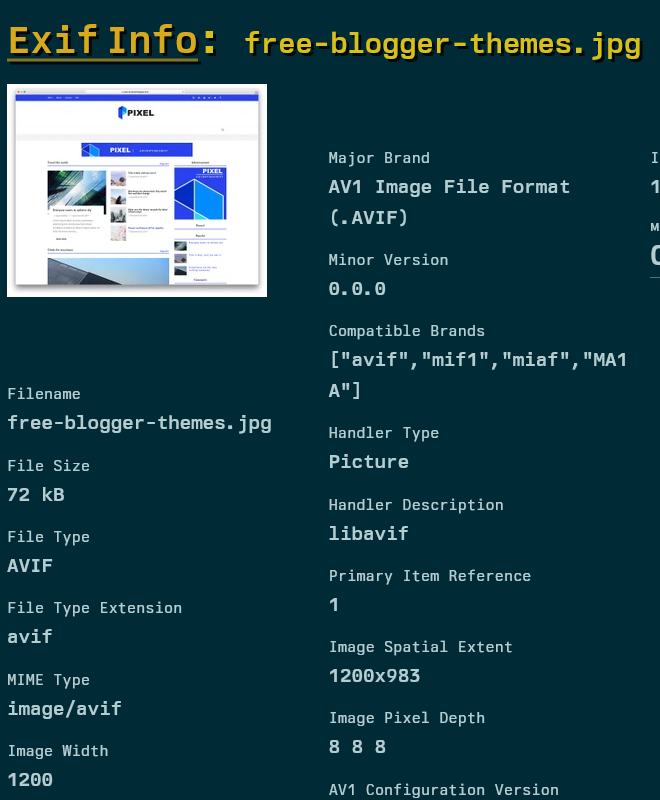
Example: the Exif Info result for free-blogger-themes.jpg on colorlib.com. The file type is AVIF, not JPEG.
On the same website, a different image was delivered as the original JPEG. Results can differ between images on one website, depending on what the CDN has stored. Where only a converted copy is available, the original cannot be examined from outside the website. The record should say so.
9. Tools
Exif Info (exifinfo.org) accepts an uploaded file or the address of an image and reports the real type of the file. When we submit an address (URL), the website receives the request from Exif Info's server, not from our computer. Exif Info states that it keeps results for up to three days, so the address and the result are held by a third party for that time.
Jeffrey's Image Metadata Viewer (exif.regex.info), long used for this work, has been offline since late 2024.
10. Recording findings
For each image examined, the record should state:
- the address (URL) from which the file was obtained and whether it is the website's copy or the original
- the file type, the size in pixels and the file size reported by the resource
- the resource used and the date of the check
- the metadata found, separating leads from general data such as colour profiles
Where no metadata is found, the record should state which version was examined. "No metadata in the website's copy" and "no metadata in the original" are different findings.
Metadata can include personal data, such as a camera serial number or the position from which a photograph was taken. Its collection falls within the scope and lawful basis of the investigation in the same way as any other personal data. For that reason, the serial number and the coordinates are blacked out in this guide.
The examination of digital files and images is covered in Module 4 of our 10 Module OSINT Practitioner Training.